
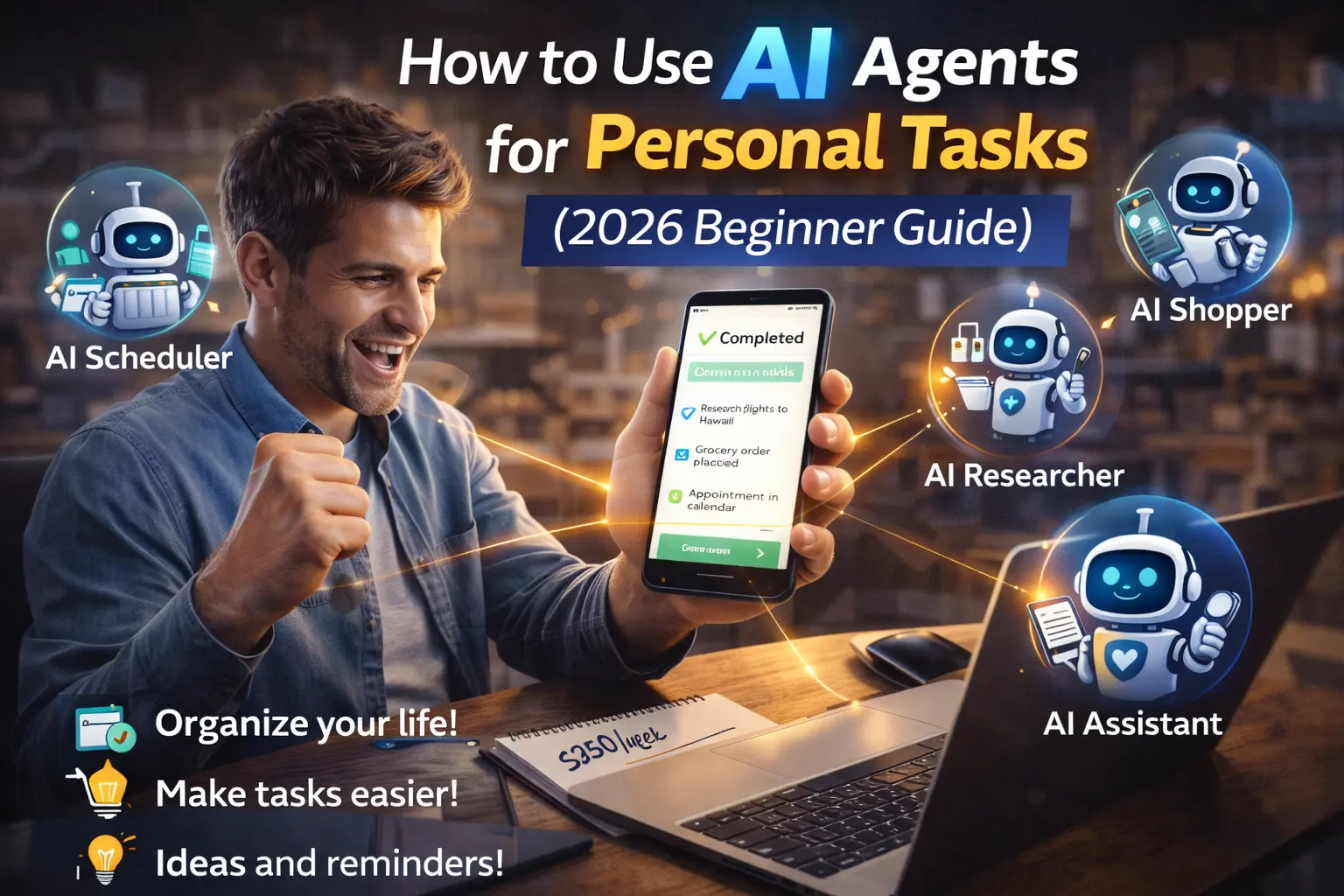
I used to spend my evenings doing what I call “admin cleanup” — responding to emails I’d ignored all day, scheduling appointments I’d put off, organizing files scattered across three apps, and trying to remember which task was urgent and which could wait. By 9 PM, I’d be exhausted from a full day of work plus two hours of digital housekeeping.
Then I discovered AI agents. Not chatbots. Not AI assistants that just answer questions. Actual agents that take initiative, complete multi-step tasks, and work in the background without me telling them what to do every five minutes.
Now, my email is organized automatically, my calendar manages itself, my to-do list prioritizes tasks based on deadlines, and I spend maybe 20 minutes on “admin cleanup” instead of two hours. This article is the honest beginner’s guide to using AI agents for personal tasks — what they actually do, which ones work for real people (not just tech companies), and how to set them up without needing coding skills.
What AI Agents Actually Are (And Why They’re Different)
Let’s clear up the confusion first. AI agents are not the same as ChatGPT or other AI chatbots.
ChatGPT (AI Assistant): You ask a question, it answers. You give it a task, it generates text. Then it waits for your next instruction.
AI Agent: You tell it a goal (“keep my inbox at zero”), and it figures out how to achieve that goal on its own. It takes actions across multiple apps, makes decisions, and handles the entire workflow autonomously.
Here’s a concrete example to make this clear:
With ChatGPT: “Summarize my unread emails” → You have to copy-paste emails into ChatGPT, it summarizes, you manually decide what to do with each one.
With an AI Agent: You set a rule: “Summarize urgent emails and flag them, archive newsletters, respond to simple questions automatically.” The agent does this every day without you touching it.
The key difference: ChatGPT is reactive (waits for you). AI agents are proactive (work independently).
In 2026, AI agents have reached a point where non-technical people can use them. You don’t need to code. You don’t need to understand how AI works. You just need to know which agents handle which personal tasks, and how to set them up.
The 7 Personal Tasks AI Agents Actually Handle Well
Not every task works with AI agents. But these seven? These are proven, practical, and legitimately save hours every week.
1. Email Management and Organization
What the agent does: Reads your emails, categorizes them (urgent, newsletters, personal, work), archives what you don’t need, flags what needs action, and even drafts basic responses.
Real example: My email agent automatically:
- Archives newsletters (I can read them later if I want)
- Flags emails with deadlines in the subject line
- Responds to meeting requests with my availability
- Summarizes long email threads in one sentence
Time saved: 45 minutes daily (used to spend 1 hour sorting email, now 15 minutes reviewing agent’s work)
Best tools:
- Cofounder AI (connects to Gmail, handles triage and responses)
- Lindy AI (email assistant that learns your preferences)
- Zapier AI Agents (custom email workflows)
How to start: Connect your Gmail account to Cofounder AI, set rules for what to archive/flag, let it run for one week while you supervise, adjust rules based on mistakes.
2. Calendar and Meeting Management
What the agent does: Finds meeting times that work for everyone, books appointments automatically, reschedules when conflicts happen, sends reminders, and protects your focus time.
Real example: When someone emails “Can we meet next week?” my calendar agent:
- Checks my availability
- Suggests 3 time slots
- Sends a calendar invite once they confirm
- Adds prep time before the meeting
- Sends me a reminder with meeting context
Time saved: 30 minutes weekly (no more back-and-forth “Does Tuesday work?” emails)
Best tools:
- Motion AI (intelligent scheduling with task integration)
- Reclaim.ai (protects focus time, auto-schedules flexible tasks)
- Morgen AI (energy-aware scheduling)
How to start: Install Reclaim.ai, connect Google Calendar, set your work hours and focus time preferences, let it auto-schedule flexible tasks based on deadlines.
3. Task Prioritization and To-Do Management
What the agent does: Takes your messy to-do list, figures out what’s actually urgent based on deadlines and dependencies, schedules time to work on each task, and reminds you when it’s time to start.
Real example: I dump everything into my to-do app (50+ tasks). My AI agent:
- Identifies tasks with hard deadlines
- Schedules time blocks on my calendar for focused work
- Moves tasks around when meetings pop up
- Surfaces the 3 most important tasks each morning
Time saved: 20 minutes daily (used to waste time deciding what to work on next)
Best tools:
- Motion AI (combines calendar + tasks + auto-scheduling)
- Sunsama (guided planning with AI suggestions)
- Trevor AI (simple AI-powered task scheduling)
How to start: Use Motion AI, add all your tasks with deadlines, let the AI schedule them into your calendar automatically, review and adjust the schedule once daily.
4. Research and Information Gathering
What the agent does: Monitors websites for updates, compiles research from multiple sources, summarizes long articles, tracks topics you care about, and delivers daily briefings.
Real example: I track AI news, competitor updates, and industry trends. My research agent:
- Checks 15 sources daily
- Summarizes new articles in 2-3 sentences
- Flags articles worth reading in full
- Compiles a morning briefing in 5 minutes
Time saved: 1 hour daily (used to manually check news sites and blogs)
Best tools:
- Perplexity AI (research with citations)
- ChatGPT Agent Mode (web research and summarization)
- Zapier AI (custom monitoring workflows)
How to start: Use ChatGPT Agent Mode, give it a list of topics to monitor, set it to deliver a daily summary, review the summary each morning instead of browsing news sites.
5. File Organization and Document Management
What the agent does: Organizes files across Google Drive/Dropbox, renames files logically, sorts into folders, finds documents when you search, and cleans up duplicates.
Real example: My file agent automatically:
- Renames screenshots with descriptive names
- Moves invoices to “Finance/2026” folder
- Tags documents by project
- Deletes files older than 2 years from Downloads
Time saved: 15 minutes weekly (no more “Where did I save that file?” moments)
Best tools:
- Cofounder AI (integrates with Google Drive, Notion)
- Zapier AI (custom file workflows)
- Claude Cowork (file management in desktop)
How to start: Set up Zapier workflows to auto-organize files by type, use naming conventions (all invoices start with “INV-“), review weekly to ensure rules are working.
6. Meeting Notes and Follow-Up Actions
What the agent does: Joins your meetings (with permission), takes notes, identifies action items, sends summaries to attendees, and adds tasks to your to-do list automatically.
Real example: After every meeting, my agent:
- Sends summary to all attendees within 5 minutes
- Adds action items to my task list with deadlines
- Schedules follow-up meetings if needed
- Archives the transcript for later reference
Time saved: 30 minutes per meeting (no manual note-taking or follow-up emails)
Best tools:
- Otter.ai (meeting transcription + AI summaries)
- Fireflies.ai (meeting notes + CRM integration)
- Microsoft Copilot (Teams integration)
How to start: Connect Fireflies to your calendar, let it join meetings automatically, review summaries after each meeting, adjust action item detection rules.
7. Personal Finance Tracking and Bill Reminders
What the agent does: Tracks spending, categorizes expenses, reminds you about upcoming bills, flags unusual charges, and generates monthly spending reports.
Real example: My finance agent:
- Sends reminders 3 days before bills are due
- Categories each transaction (groceries, utilities, entertainment)
- Alerts me if spending exceeds budget in any category
- Generates monthly report with spending trends
Time saved: 2 hours monthly (no manual expense tracking or bill tracking)
Best tools:
- YNAB (You Need A Budget) (AI-powered budgeting)
- Copilot (personal finance AI)
- Zapier AI (custom finance workflows)
How to start: Connect bank accounts to Copilot, set spending budgets by category, enable bill reminders, review weekly reports to spot trends.
How to Actually Set Up AI Agents (Step-by-Step)

Here’s the realistic path from “I’ve never used AI agents” to “My personal tasks are automated”:
Week 1: Start with ONE agent
Pick your biggest pain point:
- Email overwhelming you? → Start with email agent (Cofounder AI)
- Calendar chaos? → Start with scheduling agent (Reclaim.ai)
- Task paralysis? → Start with to-do agent (Motion AI)
Don’t try to automate everything at once. One agent, one week, master it.
Week 2: Monitor and adjust
AI agents aren’t perfect immediately. They make mistakes. You need to:
- Review what the agent did daily
- Fix errors (wrong categorization, missed emails, bad scheduling)
- Adjust rules to prevent future mistakes
- Give feedback when the agent gets it right
By end of week 2, your agent should be 80-90% accurate.
Week 3: Add a second agent
Once your first agent runs smoothly, add one more:
- If you started with email, add calendar agent next
- If you started with calendar, add task agent next
- Don’t add more than 2 agents in the first month
Week 4: Integrate agents
Now your email agent and calendar agent should work together:
- Email agent finds meeting requests → Calendar agent books them
- Task agent adds deadlines → Calendar agent schedules work time
- Meeting agent creates action items → Task agent adds them to your list
Integration = where AI agents become genuinely powerful.
What You Need to Know Before Starting
Reality check #1: AI agents aren’t perfect
They make mistakes. They’ll mis-categorize emails. They’ll schedule meetings at bad times. They’ll miss nuance. You need to supervise for the first 2-3 weeks and fix errors.
Reality check #2: You’re still responsible
If your AI agent ignores an important email or misses a deadline, that’s still your problem. Agents reduce manual work, but you’re accountable for results.
Reality check #3: Some tasks shouldn’t be automated
Don’t automate:
- Sensitive personal communications
- High-stakes decisions
- Creative work
- Relationship management
Automate the boring stuff, keep humans involved in the important stuff.
Reality check #4: Setup takes time
Week 1 is NOT easier than doing things manually. You’re learning new tools, setting up rules, fixing mistakes. The time savings come in weeks 2-4 once agents are trained.
Cost Breakdown (Realistic Budget)
Free tier option (Start here):
- ChatGPT Free (basic agent mode): $0
- Zapier Free (limited workflows): $0
- Reclaim.ai Free (basic scheduling): $0
- Total: $0/month
Starter setup ($20-40/month):
- ChatGPT Plus (full agent mode): $20/month
- Reclaim.ai Pro: $10/month
- Motion AI Basic: $19/month
- Total: $30-50/month
Power user setup ($50-100/month):
- ChatGPT Plus: $20/month
- Motion AI Team: $34/month
- Cofounder AI: $30/month
- Fireflies Pro: $18/month
- Total: $100/month
Most people start with free tiers, upgrade one tool at a time once they see clear time savings.
Common Mistakes People Make
Mistake #1: Expecting magic
“I set up an AI agent and it still requires work!” Yes. Agents reduce work by 70-80%, not 100%. You’re still supervising and making final decisions.
Mistake #2: Over-automating
Trying to automate 15 tasks in week 1. Result: overwhelmed, nothing works well, quit in frustration. Start with ONE task, master it, expand slowly.
Mistake #3: Not reviewing agent actions
Setting up an agent and ignoring what it does for 2 weeks. By the time you check, it’s made 50 mistakes. Review daily for first 2 weeks, weekly after that.
Mistake #4: Using the wrong tools
Picking enterprise tools when you need simple personal tools. If you’re just managing your own email and calendar, you don’t need Salesforce Agentforce. Use Reclaim.ai or Motion AI.
Real Results: What Changed for Me
Before AI agents:
- 1 hour daily on email management
- 30 minutes daily deciding what task to work on
- 20 minutes weekly scheduling meetings
- 15 minutes weekly organizing files
- Total: 10.5 hours per week on admin work
After AI agents (3 months in):
- 15 minutes daily reviewing agent actions
- 10 minutes daily adjusting priorities
- 5 minutes weekly checking meeting schedule
- 0 minutes organizing files (fully automated)
- Total: 2.5 hours per week
Time saved: 8 hours weekly = 416 hours annually = 10 full work weeks
That’s not hype. That’s what happens when friction disappears from routine tasks.
Final Honest Take
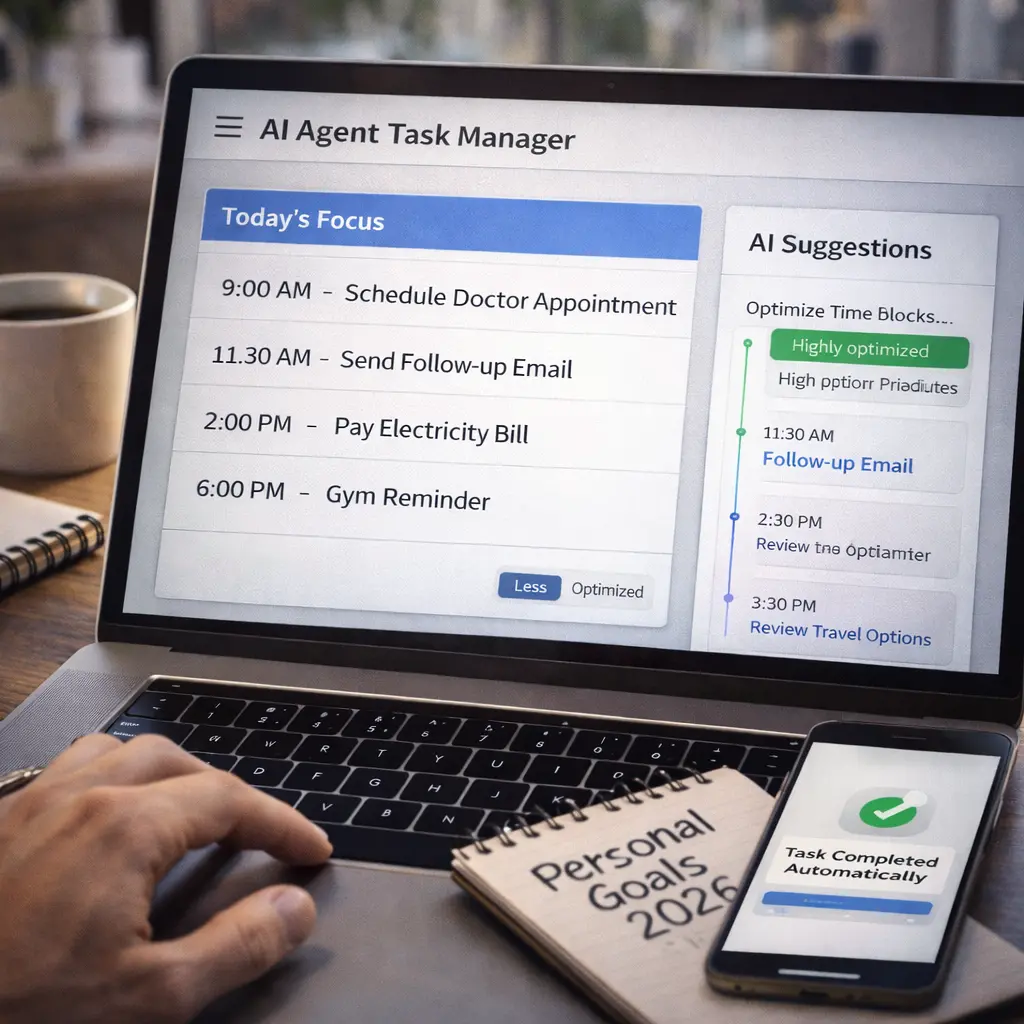
AI agents aren’t the future. They’re the present. The tools work. The results are real. The time savings compound.
But they require patience. Week 1 will frustrate you. Week 2 will show promise. Week 3 will feel like magic. By week 4, you’ll wonder how you ever managed without them.
Start with one agent. Master it. Add another. Integrate them. Within 30 days, you’ll have reclaimed hours every week.
The question isn’t whether AI agents work. It’s whether you’re willing to spend 3 weeks learning them to save 8 hours every week thereafter.
Frequently Asked Questions
1.Do AI agents work on mobile or just desktop?
Most work on both. Tools like Reclaim.ai, Motion, and ChatGPT have mobile apps. Your agents run in the background regardless of which device you’re using.
2.What if the agent makes a mistake with something important?
This is why you review agent actions daily for the first 2-3 weeks. Set up notification rules for important actions so you can catch mistakes immediately.
3.Can I use AI agents if I’m not technical?
Yes. Tools like Reclaim.ai, Motion AI, and Cofounder AI are no-code. If you can set up a smartphone, you can set up these agents.
4.How long until I see time savings?
Week 1: No savings (learning). Week 2: Small savings (30 min daily). Week 3-4: Significant savings (1-2 hours daily).
5.What’s the difference between AI assistants and AI agents?
Assistants respond to your requests. Agents proactively complete tasks without constant instruction. Assistants are reactive, agents are autonomous.
6.Are my personal data safe with AI agents?
Depends on the tool. Read privacy policies. Most reputable tools (Reclaim.ai, Motion, Cofounder) encrypt data and don’t train AI on your personal information.Depends on the tool. Read privacy policies. Most reputable tools (Reclaim.ai, Motion, Cofounder) encrypt data and don’t train AI on your personal information.
7.Which agent should I start with first?
Whichever task wastes the most of your time. For most people, that’s email (start with Cofounder AI) or scheduling (start with Reclaim.ai).
8.Can AI agents replace a human assistant?
For routine tasks (80% of assistant work), yes. For judgment calls, relationship management, and strategic thinking, no. Agents handle execution, humans handle strategy.